Video:
How to Use the New Bulk Import Feature in Our App
Watch Video
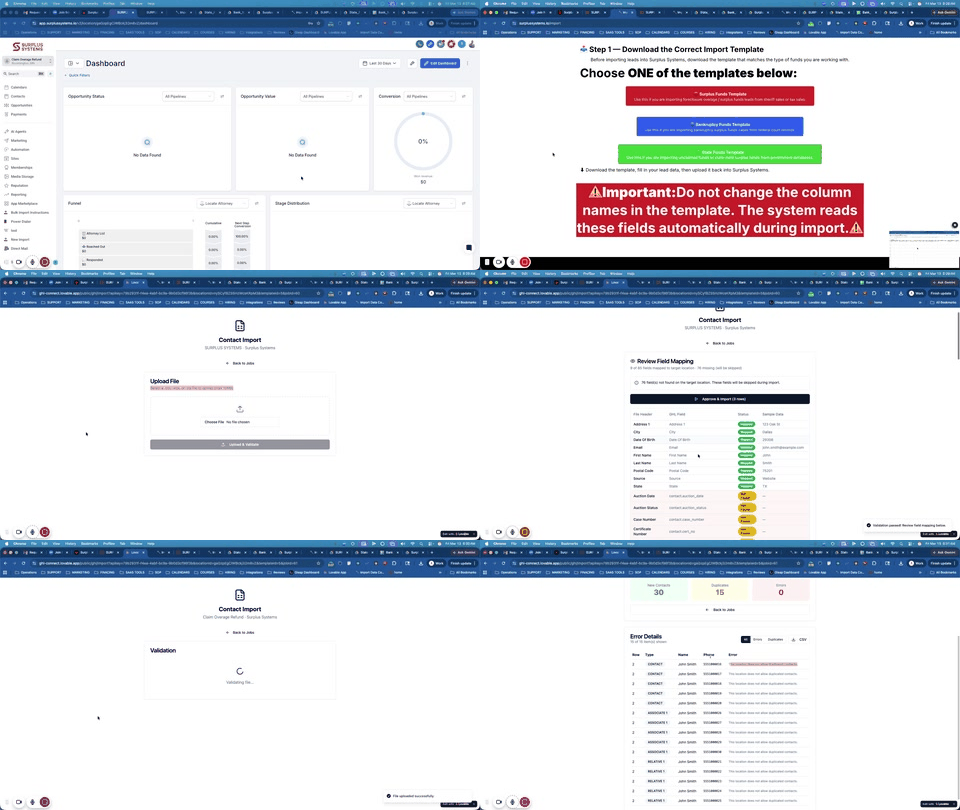
Our new Import Feature makes it easy to upload large lists of contacts into the platform in just a few minutes. Follow the steps below to properly prepare and import your data.
First, navigate to Bulk Import Instructions inside the platform.
This section will open a screen that includes:
Written instructions
A walkthrough video explaining the process
This page will guide you through everything you need to do before importing your data.
Depending on the type of leads you are working with, you need to download the correct template.
Available templates include:
Tax Overages / Mortgage Overages Template
Bankruptcy Funds Template
State Funds Template
⚠ Important:
Do not change the column names in the template. The system automatically reads these fields during the import process.
If you need additional fields added to your CRM, contact support and we can create a custom template for your specific workflow.
Once you download the template:
Copy your existing lead data.
Paste it into the template file.
Save the file.
You can save the file as either:
CSV
Excel (XLSX)
Both formats will work with the system.
After preparing your file:
Navigate to New Import
Click New Import
Select Choose File
Upload your saved CSV or Excel file.
Once your file is selected:
Click Upload and Validate
The system will review your file and automatically map the fields.
During this step the platform will check:
If the fields match the CRM
If any columns are missing
If the data can be imported correctly
If a field is not found in your CRM, the system will notify you.
If all fields are mapped correctly:
Click Approve and Import
The system will begin importing your contacts.
After the import finishes, you will be able to see the results in the Import List.
The report will show:
New Contacts Imported
Duplicate Contacts
Errors (if any)
Example:
30 new contacts imported
15 duplicates
0 errors
If a record already exists in your CRM, the system will flag it as a duplicate.
You may see a message such as:
This location does not allow duplicate contacts.
This simply means the contact is already inside your system, so it will not be imported again.
You can review these records in the Duplicates section.
The new Import Feature allows you to:
Upload large lead lists quickly
Automatically map fields
Detect duplicates
Track import progress
This update should save you significant time when adding new leads to your CRM.
